
This is a new kind of article for me. If it goes well, I will do this regularly. It is going to be a tutorial that walks a new Mmojo user through, from getting the software to running a Teleprompter on their computer. I am going to share this before it is finished and work over the course of a week or so to complete it. Email me with feedback if you run into it while it’s under construction. -Brad

#MeWriting I’m not sure if Abe Lincoln would have had more public speaking success with a teleprompter, but I know I will. This was my first vibe coded app with the Files feature of Mmojo Complete. In fact, it was my first vibe coded app ever. I fully understood what was wrong with coding agents. OpenClaw had, after all, deleted all the files on an important local file share when I had simply tasked it to check the weather. So I knew how not to make a vibe coding feature, and set out to make a good one in Mmojo Complete. It should write code, but it should let me manage the files. You will be using that feature today to create your own teleprompter. On the way, you will create the exact one I did, with the exact iterations along the way.
The Teleprompter web application we are going to create consists of three files: index.html, script.js, and style.css. This will be fine for running in your browser. We’re not going to create an official “progressive web application” (or PWA). We could certainly do that, but a web page works well.
This article is written for an audience that has successfully followed technical guides. The audience is familiar with common file management and web browser tasks and features. Hopefully, that’s you!
This article is long enough to need a table of contents, and perhaps long enough for you to work through in several sittings.
Tasks:
- Watch the original Teleprompter app video.
- Download and install Mmojo Server for your computer.
- Download and install a large language model that will write great code.
- Create a project directory for your teleprompter.
- Start Mmojo Server.
- Open Mmojo Complete in your web browser.
- Create a Bookmarks Bar folder to organize the projects Mmojo Complete bookmarks.
- Create the exact Teleprompter app that I created.
- Create your own Teleprompter app.
- Using your Teleprompter app with OBS Studio.
- How a Mmojo Appliance makes this process easier.
Watch the original Teleprompter app video.
I made a video a few days after making the original app. This will give you a sense of the process.
Mmojo Bookmarks are the hidden key to success to making a repeatable process and documenting it. The video doesn’t go into that.
Download and install Mmojo Server for your computer.
If you don’t have the latest Mmojo Server, please follow instructions to get Mmojo Server, start it, use it a little, and stop it.
- You need a fairly recent PC or laptop with at least 16 GB of RAM. Macs are fine too!
- Get Mmojo Server. This link opens in new tab, come back here when you are done.
Download and install a large language model that will write great code.
We are going to use the Qwen 3.5 9B model. It is made by the Chinese company, Alibaba Cloud. If that causes you concern, you can try the Google Gemma 4 12B Instruct model. I recommend 24 GB RAM if you want to use Gemma 4 12B.
Download the model you plan to use from my Hugging Face repository:
Now, open the folder that has Mmojo Server in it. Move the existing .gguf file out of the folder, or delete it. Copy this new .gguf file into the folder. Your folder will look something like this:
(picture here)
Create a project directory for your teleprompter.
Make a folder called “Teleprompter” on your Desktop. You can move it to a better place later.
Create a Bookmarks Bar folder to organize the projects Mmojo Complete bookmarks.
These instructions are for the Chrome web browser. Your preferred web browser may be different.
- Show Bookmarks Bar if not shown.
- Create a folder called “Teleprompter” in the Bookmarks Bar.
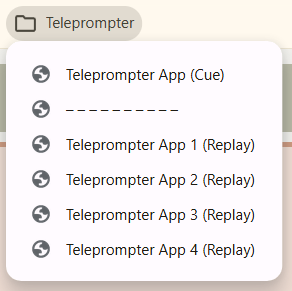
- Drag these bookmark links, one at a time, to the Bookmarks Bar and drop them on the “Teleprompter” folder.
- Teleprompter App (Cue)
- – – – – – – – – – –
- Teleprompter App 1 (Replay)
- Teleprompter App 2 (Replay)
- Teleprompter App 3 (Replay)
- Teleprompter App 4 (Replay)
- Your “Teleprompter” folder will look like this when clicked:
Start Mmojo Server.
Open Mmojo Complete in your web browser.
Create the exact Teleprompter app that I created.
- In the browser window that is displaying Mmojo Complete, choose the “Teleprompter App 1 (Replay)” bookmark from the “Teleprompter” folder in your Bookmarks Bar.
A cue to create the app is presented in the work area of Mmojo Complete. The status area at the bottom of the window indicates “Ready to replay.”
(picture) - Without modifying (i.e. typing or deleting) the work area, click the “Start” button. This will replay the exact result I received when originally generating the app. That result is contained in the bookmark. Replaying will take a minute or so. You can skip to the end by hitting the “Enter” (or “Return”) key.
(picture) - A few moments after replaying the result is complete, a files icon will appear at the top right of the window.
(picture)
Click the files icon.
(picture)
The files interface will appear. - (TODO) Choose a destination directory — the “Teleprompter” directory you previously created.
- (TODO) Save the files.
- (TODO) Open the app. Notice some things that don’t work.
- (TODO) Request changes — “Teleprompter App 2 (Replay)” bookmark.
- (TO DO) Save the files — saves latest versions over existing.
- (TODO) Open the app. Notice some things that don’t work.
- (TODO) Request changes — “Teleprompter App 3 (Replay)” bookmark.
- (TO DO) Save the files — saves latest versions over existing.
- (TODO) Open the app. Good enough for what we need!
Create your own Teleprompter app.
- Create a “My Teleprompter” folder.
- Clear Mmojo Complete.
- (TODO) Use the “Teleprompter App (Cue)” bookmark. Start it. Mmojo Server is making this teleprompter app. It will make a different one every time.
- (TODO) Save it. Try it.
- (TODO) Add changes to the bottom of the work area. Start it. Save it. Try it. Rinse. Repeat.
Using your Teleprompter app with OBS Studio.
(TODO) I use mine with an AutoIT script that floats the window, places it above OBS Studio, resizes it to fit the video area of OBS studio, and makes the window semi-transparent.
How a Mmojo Appliance makes this process easier.
(TODO) Summary.